From Wayland to Starship: The Anatomy of a Linux Desktop
GNOME, KDE, Hyprland, Niri, Kitty and Fish are not alternatives to each other. A map of the Linux desktop stack, layer by layer, and what you are really installing.
From Wayland to Starship: The Anatomy of a Linux Desktop
Step into Linux customization and you get buried fast under names like GNOME, KDE, Wayland, Hyprland, Niri, Sway, Noctalia, DankMaterialShell, Quickshell, Waybar, Kitty, Alacritty, Bash, Fish, Starship.
The problem is that these names get thrown together as if they all sat on the same shelf.
They don’t. They are not alternatives to each other.
Hyprland is not an alternative to Fish. Fish is not an alternative to Kitty. Kitty is not an alternative to Noctalia. Noctalia is not an alternative to Niri. And Niri alone is not the equivalent of GNOME.
Each of these projects occupies a different position in the system.
So this post is an attempt to build a mental map of the Linux desktop: what the main components are, what each one does, which ones can replace each other, and what you are actually installing when you pick Niri, Hyprland, Kitty, Fish or anything else. It is not a complete catalogue of every existing tool — it is a way to recognize the category a project belongs to.
If you prefer to see the whole map at once before reading the details, here it is:
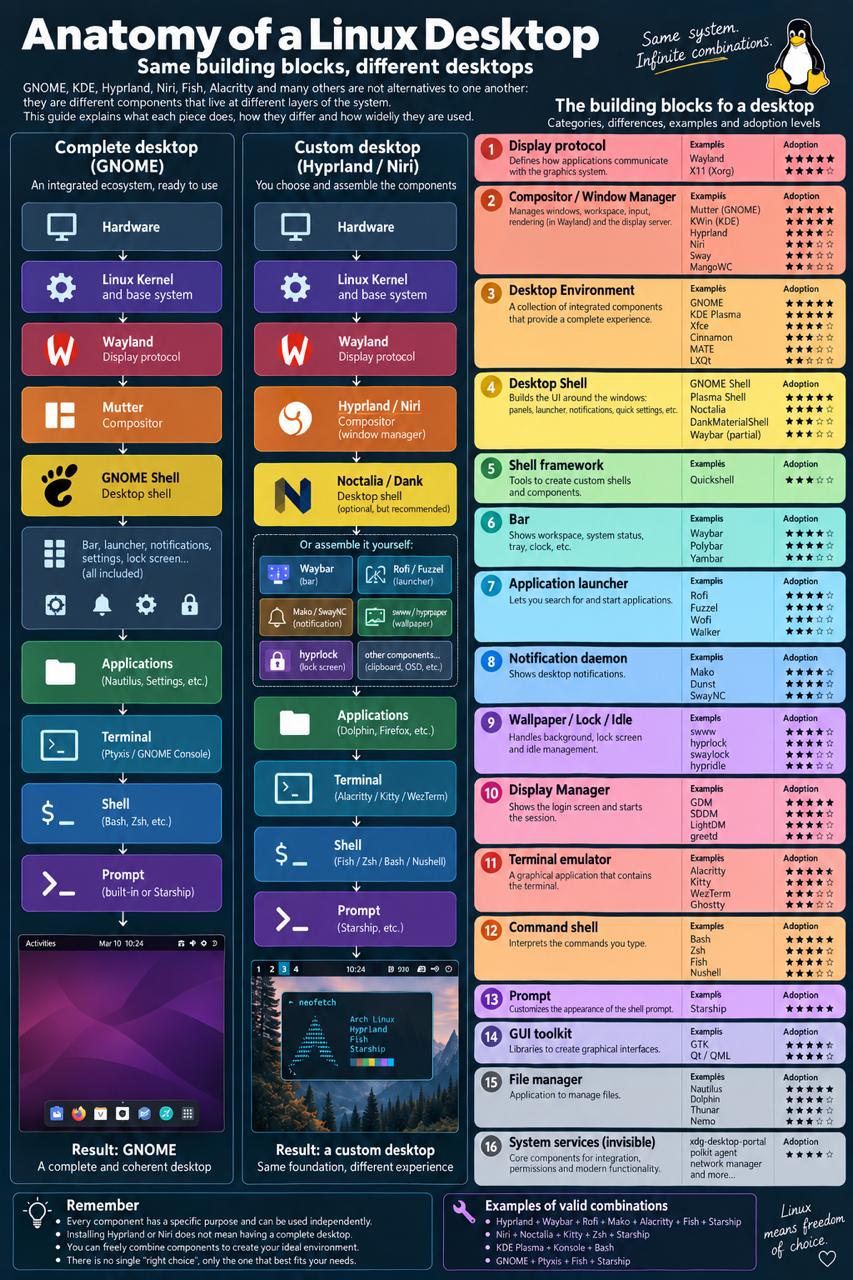
About the adoption levels: they indicate general adoption or popularity within a specific category. They are not market-share percentages — for most Linux components a reliable global statistic simply doesn’t exist.
The minimum map
This is the structure to keep in mind.
The graphical stack:
Hardware
   ↓
Linux kernel + graphics drivers
   ↓
Display protocol
Wayland / X11
   ↓
Compositor / Window Manager
Mutter / KWin / Hyprland / Niri / Sway
   ↓
Desktop Shell
GNOME Shell / Plasma Shell / Noctalia / Dank
   ↓
or individual components
Waybar / Rofi / Mako / swaylock / swww...
   ↓
Applications
Firefox / Dolphin / Nautilus / Kitty / Steam...
A Desktop Environment like GNOME or KDE Plasma does not occupy a single layer of that stack. It is a package that assembles several of those layers for you:
GNOME
├── Mutter
├── GNOME Shell
├── Settings
├── Nautilus
├── notifications
├── launcher
├── lock screen
└── other integrations
With Hyprland or Niri, you are the one choosing many of those pieces.
The terminal stack is different. It is a small independent stack that lives as an application inside the desktop:
Terminal emulator
Kitty / Ghostty / Alacritty
   ↓
Command shell
Bash / Zsh / Fish
   ↓
Prompt
Starship / the shell's own prompt
   ↓
CLI programs
git / ssh / vim / opencode / fastfetch...
This distinction matters: Kitty is not a piece of Hyprland. It is an application that Hyprland, GNOME, KDE or Niri can display like any other window.
1. Kernel and graphics drivers
Start at the bottom. The Linux kernel manages the hardware and lets the rest of the system talk to the CPU, the GPU, input devices, monitors and so on.
For graphics, drivers and components come into play: AMDGPU, the NVIDIA driver, Intel graphics, DRM, KMS, Mesa. We normally don’t perceive them as part of the UI, but they are the foundation everything else is built on:
RTX 4070
   ↓
NVIDIA driver
   ↓
Linux
   ↓
Wayland
   ↓
Niri
There is no meaningful ranking here, because it depends on your hardware. The three big families are AMD / Mesa, Intel / Mesa and NVIDIA.
2. Display protocol: Wayland and X11
The display protocol defines how applications communicate with the graphics system. Today there are two names that matter: Wayland and X11 / Xorg. There is no real third competitor on the modern Linux desktop.
Wayland is the modern model. A Wayland application talks to the Wayland compositor:
Firefox
   ↓
Wayland
   ↓
Niri
   ↓
monitor
A key property of Wayland’s architecture is that the compositor also acts as the display server. So Wayland is not a program you launch — it is the protocol programs use to talk to the compositor.
Adoption:
- Wayland — ★★★★★
- X11 / Xorg — ★★★★☆
X11 is still around for compatibility and in some environments, but the direction of the modern Linux desktop is Wayland.
3. Compositor / Window Manager
This is the component that generates the most confusion.
The compositor decides where windows appear, how big they are, which one has focus, how workspaces behave, how monitors are handled, scaling, animations, transparency, tiling, floating and input. On Wayland it also plays the role of display server — which is why it is one of the most important components of the whole stack.
Mutter is the compositor GNOME uses. A GNOME user normally doesn’t think “I’m using Mutter” — they think “I’m using GNOME”, because GNOME integrates it automatically. KWin is the same story in the KDE Plasma ecosystem: it handles window management and compositing while Plasma builds most of the visible interface around it.
Hyprland is a Wayland compositor, not a complete desktop environment. Its own documentation states that applications, integrations and shell have to be chosen by the user. Installing Hyprland gets you the engine that manages windows and display — not necessarily a bar, a launcher, notifications, a file manager, a wallpaper manager or a control center.
Niri is also a Wayland compositor. Its defining feature is scrollable tiling: windows are arranged in columns along a potentially very wide strip, instead of continuously splitting the visible space.
Adoption across the whole Linux desktop:
- Mutter — ★★★★★ (GNOME)
- KWin — ★★★★★ (KDE Plasma)
- Hyprland — ★★★★☆ (among standalone compositors, one of the most visible and widespread projects)
Looking only at standalone Wayland compositors, the practical order is Hyprland, then Sway, then Niri — with MangoWC as one of the newer names showing up in modern Wayland setups. Niri is much younger but has quickly become one of the most visible projects in the tiling ecosystem.
4. Desktop Environment
A Desktop Environment — DE — is not simply a bigger window manager. It is a coordinated set of components providing a complete desktop experience.
GNOME conceptually includes Mutter (window management and compositing), GNOME Shell (bar, overview, launcher), Settings, Nautilus, notifications, lock screen and system integrations. KDE Plasma offers an analogous ecosystem around KWin, Plasma Shell, System Settings, Dolphin and many other components.
The fundamental difference is this: GNOME and KDE hand you an already assembled desktop. With Hyprland, Niri or Sway you are much freer to decide which pieces to build it from.
Adoption:
- GNOME — ★★★★★
- KDE Plasma — ★★★★★
- Xfce — ★★★★☆
Right behind them: Cinnamon, MATE and LXQt.
5. Desktop Shell
This is probably the most important category to understand after the compositor.
The desktop shell builds most of the visible interface around your normal applications: top bar, dock, application launcher, notifications, quick settings, volume, network, Bluetooth, calendar, workspace indicator, system tray, clipboard, power menu, OSD, lock screen, wallpaper controls.
In practice:
Niri
= decides where Firefox is

Noctalia
= draws the bar, launcher, notifications
  and control center around Firefox
GNOME Shell is the shell of the GNOME ecosystem: top bar, Activities Overview, launcher, notifications, quick settings, workspace UI. Plasma Shell is its KDE counterpart: panel, task manager, launcher, widgets, system tray, desktop.
Noctalia is a desktop shell for Wayland. It provides bar, dock, launcher, control center, notifications, wallpaper, lock screen, clipboard, OSD and more, while leaving real window management to the compositor. Which means you can have Niri + Noctalia, or Hyprland + Noctalia.
DankMaterialShell — DMS — belongs to the same category. It is a complete shell for Wayland compositors like Niri, Hyprland, MangoWC and Sway, and it integrates components you would otherwise assemble separately: launcher, notifications, lock screen, idle management.
Adoption:
- GNOME Shell — ★★★★★
- Plasma Shell — ★★★★★
- the custom Wayland shells — Noctalia and DankMaterialShell above the rest, with a bar such as Waybar covering only part of the same role
If we look only at modern custom Wayland shells, this space is far younger and more fragmented than GNOME/KDE — which is exactly why the same shell can sit on top of very different compositors.
6. Shell framework
And here is yet another different layer. A shell framework is not necessarily a ready-to-use shell. It is a tool you use to build one.
The main example in the modern Wayland desktop is Quickshell, which uses Qt/QML and lets you build bars, launchers, widgets, dashboards, notification centers, OSDs and lock screens.
To make the relationship clear:
Niri
   ↓
DankMaterialShell
   ↓
Quickshell
Niri is the compositor. Dank is the shell. Quickshell is one of the frameworks used to build that shell — DankMaterialShell explicitly states it is built with Quickshell and Go.
Names worth knowing in this category: Quickshell, AGS / Astal, Eww. These are mostly tools for people building custom desktops or elaborate dotfiles.
7. The individual shell components
You are not required to use a complete shell. You can assemble the desktop component by component — and for years that was the classic way to build a Sway/Hyprland setup.
Bar. Shows workspaces, current application, CPU, RAM, audio, network, battery, time. Leading options: Waybar, then Polybar (mostly X11) and Yambar. Waybar is one of the references in the Wayland world and is used with compositors like Sway and Hyprland. With Noctalia or Dank it is often no longer needed, because the shell already includes its own bar.
Application launcher. The window that appears when you hit a shortcut and type “firefox”. Leading options: Rofi and Fuzzel, then Wofi, with newer entries such as Walker. Some modern shells integrate their own launcher.
Notification daemon. The process that receives application notifications and decides how to display them. Leading options: Mako, then Dunst and SwayNC. Noctalia, Dank, GNOME and KDE already integrate this.
Wallpaper. A compositor doesn’t have to handle the background. Among the best known tools: swww, hyprpaper, mpvpaper.
Lock screen. Best known: swaylock, hyprlock, gtklock.
Idle daemon. Decides what happens when you are not using the computer — turn off the monitor after 5 minutes, lock after 10, suspend after 30. Best known: swayidle, hypridle, or the integration inside a desktop shell/DE.
And this is exactly where the advantage of a shell like Dank becomes clear: it can replace several programs you would otherwise configure one by one. DMS presents itself explicitly as an integrated alternative to Waybar, swaylock, swayidle, Mako, Fuzzel and others.
8. Display Manager
A small step backwards. Before the desktop starts, something has to let you pick a user and start the session. That screen is usually the Display Manager:
power on
   ↓
GDM
   ↓
enter password
   ↓
GNOME Wayland session
The Display Manager is not the desktop. It authenticates you and starts the session. Leading options: GDM, SDDM, LightDM. In heavily customized setups you will also run into greetd, with custom graphical frontends.
9. Graphics toolkit
GTK and Qt are often mentioned alongside GNOME and KDE, but they belong to yet another category. They are toolkits developers use to build graphical interfaces.
Historically GNOME maps to GTK and KDE to Qt — but that does not mean a Qt application can’t run under GNOME. You can perfectly well have:
Niri
+
Noctalia
+
Dolphin
even though Dolphin belongs to the Qt/KDE ecosystem. Or KDE with Firefox and GTK apps.
This also explains why a custom desktop sometimes has applications with different fonts, different file pickers, different decorations, different colors — you can have GTK and Qt programs configured with different themes at the same time.
Leading toolkits: GTK, Qt, and the Electron / web UI stack that powers a huge number of modern desktop applications built with web technologies.
10. File Manager
The file manager is not a mandatory element of the compositor. It is just an application. Leading options: Nautilus / Files, Dolphin, Thunar. Other examples: Nemo, PCManFM and many more.
So Niri + Dolphin is completely normal, and so is Hyprland + Nautilus.
11. Terminal emulator
Now we get to Kitty, Alacritty, Ghostty and the rest.
A terminal emulator is an ordinary graphical application. Its job is to create a window capable of hosting terminal programs:
Kitty
   ↓
Fish
   ↓
git
It handles text rendering, fonts, colors, cursor, scrollback, keyboard input, PTY, terminal size, tabs and splits where supported, images where supported, GPU acceleration where available, terminal protocols.
It does not interpret git status. That is the shell’s job.
The modern names to know: Alacritty, Kitty, WezTerm, Ghostty. Depending on the desktop, GNOME Console / Ptyxis, Konsole and Foot are also extremely common.
The choice here is mostly about philosophy:
- Kitty — many features, configurability, GPU rendering, images, tabs, splits, automation.
- Alacritty — a more minimal approach: it does the terminal emulator job and leaves additional features to other programs.
- Ghostty — a modern approach aiming to combine performance, simplicity and a good out-of-the-box experience.
- WezTerm — highly scriptable and cross-platform.
The essential point: changing terminal emulator normally does not change the language you use to interact with the computer. That depends on the shell.
12. Command shell
Inside the terminal emulator a command shell is normally started. Here we find Bash, Zsh, Fish, Nushell.
Its job is to interpret what you type:
cd ~/Downloads
git status
ls
mkdir project
The shell reads what you type, interprets the syntax, executes programs, connects programs through pipes, manages variables and enables scripting. Fish, for example, is explicitly designed as an interactive shell and includes syntax highlighting, autosuggestions and completions.
Adoption:
- Bash — ★★★★★ — practically ubiquitous on Linux and the de facto standard for a huge number of scripts.
- Zsh — ★★★★☆ — widely used by people who customize their terminal heavily.
- Fish — ★★★★☆ — much appreciated for the immediate interactive experience.
Nushell sits in a smaller niche, with a different idea: commands that return structured data instead of plain text.
13. Prompt
Finally, there is the thing that is most often mistaken for “the terminal”. That line:
steve@linux:~/projects$is the shell prompt. It can be very simple, or turn into something like:
 ~/projects  main !2
 ❯
with information about Git, the current directory, the language, the virtual environment, exit status, command duration, hostname, cloud environment.
One of the best-known projects is Starship, a cross-shell prompt — meaning you can use it with different command shells:
Kitty
   ↓
Fish
   ↓
Starship
or
Ghostty
   ↓
Zsh
   ↓
Starship
Top 3 approaches: Starship, then native Zsh prompts/themes such as Powerlevel10k and similar, then the prompt integrated or configured directly in the shell.
14. XDG portals and invisible components
Then there are several components we normally don’t see. For example xdg-desktop-portal and its backends, which handle screen sharing, screenshots, file pickers, Flatpak, controlled opening of resources.
Then: Polkit agent, Secret Service / keyring, clipboard manager, NetworkManager, PipeWire, WirePlumber, Bluetooth services.
With GNOME and KDE, most of this is configured and integrated automatically. When you build a desktop with Niri or Hyprland, you suddenly discover that a desktop is made of a great many small independent services.
So what am I actually installing?
Some examples.
Ubuntu / GNOME
Linux
   ↓
Wayland
   ↓
Mutter
   ↓
GNOME Shell
   ↓
GNOME applications

Terminal emulator:
Ptyxis / Console

Command shell:
Bash
Almost everything is decided and integrated by the Desktop Environment.
KDE Plasma
Linux
   ↓
Wayland
   ↓
KWin
   ↓
Plasma Shell
   ↓
KDE applications

Terminal:
Konsole

Shell:
Bash
Again, a complete ecosystem.
Classic Hyprland
Linux
   ↓
Wayland
   ↓
Hyprland
   ↓
Waybar
Rofi
SwayNC
hyprpaper
hyprlock
hypridle
Here you are building the desktop by choosing every component.
Modern Niri with a full shell
Linux
   ↓
Wayland
   ↓
Niri
   ↓
Noctalia
Noctalia takes care of much of the interface you would otherwise have had to build with several separate programs. Likewise with Niri + DankMaterialShell.
And the terminal?
Regardless of all of the above, you can have:
Kitty
   ↓
Fish
   ↓
Starship
The nice part is that the same combination could live inside GNOME, KDE, Hyprland or Niri — because terminal emulator, command shell and prompt are independent from the compositor.
Which stack should you choose?
At this point we can stop asking “which Linux desktop is best?” and start asking a more useful question: how much do I want the system to choose components for me?
“I want to install Linux and get to work.” If you have no interest in building the desktop piece by piece, Wayland + GNOME or Wayland + KDE Plasma are the simplest choices. GNOME tends to be more opinionated: it decides more about how the desktop should work. KDE generally offers many more graphical settings. Either way you don’t have to worry about compositor, notifications, launcher, lock screen and dozens of services.
“I want to customize, but without building everything from scratch.” This is where the new generation gets interesting: Niri + Noctalia, Niri + DankMaterialShell, or the same shells on top of Hyprland. You get the freedom of a standalone compositor without having to assemble Waybar, Rofi, Mako, swww, swaylock, swayidle and various scripts one by one. Noctalia, for instance, was born specifically to provide a coherent Wayland shell instead of stitching together bar, launcher, notification daemon, lock screen and wallpaper tool.
“I want to control every single piece.” Then something like Hyprland / Niri / Sway + Waybar + Rofi or Fuzzel + Mako or SwayNC + swww + swaylock + swayidle makes sense. More work — but you decide practically everything. This is the world of dotfiles, GitHub configurations and the extremely customized desktops you see on r/unixporn.
“I mainly want a beautiful, comfortable terminal.” You don’t need to change Desktop Environment. You can stay on GNOME or KDE and only change Kitty or Ghostty + Fish + Starship + a Nerd Font, maybe adding fastfetch for the classic distro-logo-and-stats screen. The visual result can change completely without touching Wayland or the compositor.
Some combinations that make sense
- Hyprland + Waybar + Rofi + Mako + Alacritty + Fish + Starship
- Niri + Noctalia + Kitty + Zsh + Starship
- KDE Plasma + Konsole + Bash
- GNOME + Ptyxis + Fish + Starship
Same foundation, very different experience.
The mental rule to remember
When you run into a new Linux project, just ask yourself:
- Does it manage windows? It is probably a compositor / window manager. Hyprland, Niri, Sway.
- Does it build the bar, launcher and notifications? It is probably a desktop shell. GNOME Shell, Plasma Shell, Noctalia, Dank.
- Is it used to build a shell? It is probably a shell framework. Quickshell.
- Does it only do a bar or a launcher? It is a shell component. Waybar, Rofi, Fuzzel, Mako.
- Is it the window where I type commands? It is a terminal emulator. Kitty, Ghostty, Alacritty.
- Does it interpret what I type? It is a command shell. Bash, Zsh, Fish.
- Does it change the line in front of the cursor? It is a prompt. Starship.
- Does it give me all of this already assembled? It is probably a Desktop Environment. GNOME, KDE Plasma, Xfce.
In one sentence
The fundamental difference between GNOME and a Niri/Hyprland setup is not necessarily what they can do. It is who decides how the components get assembled.
With GNOME, someone already built the desktop for you. With Niri + Noctalia, you pick the engine and a shell that builds most of the interface. With Niri + Waybar + Fuzzel + Mako + swaylock + swww, you personally build almost every piece.
And it is exactly this modularity that makes the Linux desktop interesting. There isn’t necessarily a single “desktop”. There is a stack of components. Once you understand which problem each component solves, names like Wayland, Niri, Hyprland, Noctalia, Kitty and Fish finally stop looking like random alternatives to each other.